How do I import my inventory from a file?
Last updated: October 13, 2026
If your previous software or a scanning app can export your cards, you can import them in one step.
- Open Inventory and click Import.
- Click Download example to get the expected format.
- Prepare a CSV or Excel (.xlsx) file with these columns:
| Column | Content |
|---|---|
tcgPlayerId | The TCGplayer product ID of the card. |
finish | A finish listed in the import window (for example Non Foil or Foil). Valid values depend on the game. |
grading | The condition (NM, SP, MP, HP or DMG). |
quantity | A positive whole number. |
- Select your file and click Import.
The import creates inventory adjustments in Draft. Review them, then click Send to Shopify.
A file can contain up to 5,000 rows. Split larger files. If some rows are rejected, click Download error file to see what to fix.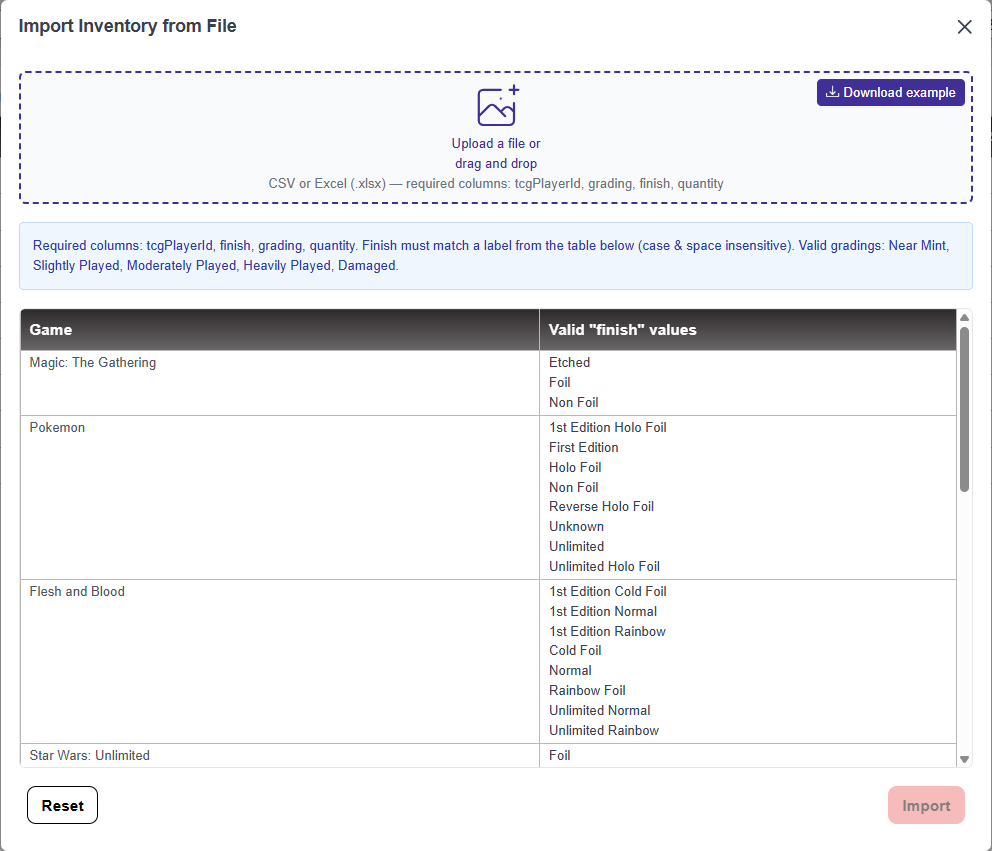
What if my file has no TCGplayer ID ?
- Some apps and scanners export only the card name, set and number, or another ID (such as a Scryfall ID). Don't enter your cards by hand: email the file to
[email protected]. For a first import, we match it to the catalog for you and send back the few cards we couldn't match with certainty, so you can check them.
Other articles that may interest you
Help
Product update: October 2026
Cyberpunk TCG and 4 more games, new POS filters, bulk card creation and a monthly singles inventory report.
HelpCan I sell graded cards (slabs) with MarketSync?
Graded cards are managed as regular Shopify products, priced by you.
HelpHow do I add sealed products to Shopify?
Create booster boxes and other sealed products in one click, then track your price against the market.